Login
Overview
The Login / Sign Up page allows users to securely access the PicMe application or create a new account using an email address, phone number, or social login options. The same flow is used for both existing and new users.
Supported Platforms
- Android App
- iOS App
- Compatible with modern Web browsers (Chrome, Edge, Safari, Firefox)
Security Considerations
- All authentication requests are processed over a secure connection (HTTPS).
- Social logins use trusted third-party authentication providers.
- No passwords are exposed on this initial screen.
Help & Support
If users face issues while logging in or signing up, they should contact the PicMe support team or administrator.
Login / Sign Up Options
Email or Phone Field
- Label: Email or Phone
- Users can enter either:
- A registered email address
- A registered mobile phone number
- This field is mandatory.

Continue Button
- Button label: Continue
- Used to proceed with authentication after entering email or phone.
- Behavior:
- If the user already exists, the flow continues to login verification.
- If the user is new, the flow continues to account creation.

Login Button
- Button label: Log in
- Used to proceed with authentication after entering email or phone and password
- Behavior:
- If the user enter valid user name and password and click on Log in button, the flow continues to login verification.

- After clicking on Log in button, the collection page is displayed.

Social Login Options
- Users can authenticate using third-party providers:
- Log in with Google
- Log in with Apple
- These options allow faster access without manually entering credentials.

Terms and Privacy Acknowledgement
- At the bottom of the card, the following message is displayed:
- By continuing, you agree to our Terms of Use and Privacy Policy
- Terms of Use and Privacy Policy are clickable links.
- Continuing with any login or sign up method implies user consent.
Authentication Flow
- User opens the Login / Sign Up page.
- User enters an email address or phone number.
- User clicks Continue.
- System determines whether the user is existing or new.
- User is guided through the appropriate login or sign up verification steps.
- On successful authentication, the user is redirected to the application.
Create New User
Overview
The New User functionality allows new users to register and create an account in the application by providing required details such as email, username, and password.
Create New User Screen
Assessing Create New User
- Navigate to the Sign Up / Register page.

- Enter the Username field which is required.
- Click on Continue button

- Enter the Password
- Click on Continue button

- Enter the verification code
- Click on continue button

- Enter the account user name
- Click on continue button

- New user is created successfully

Login with Google
Overview
Login with Google allows users to securely sign in to PicMe using their Google account credentials instead of creating and managing a separate username and password. This provides a fast, secure, and convenient authentication method for accessing the application.
Login with Google Screen
Google Sign-In
- Click on Login with google button

- Enter the mail id and click on next

- Enter the password and click on next

- User is logged in successfully

Login with Apple
Overview
Login with Apple allows users to securely sign in to PicMe using their Apple ID instead of creating a separate account. This feature provides a simple, fast, and privacy-focused authentication method, enabling users to access PicMe quickly while maintaining their security and privacy.
Login with Apple Screen
Sign In with Apple
- Click on Login with Apple button

- Enter the Apple id and click on continue button

- Enter the password And click on sign in button

- User is logged in successfully

Forgot Password
Overview
The Forgot Password functionality allows users to reset their account password if they forget it by verifying their identity through email or OTP verification.
Forgot Password Screen
Accessing Forgot Password
- Navigate to the Login page.

- Click on the Forgot Password option.

- Enter the registered email address.
- Click on Send Verification Code / Reset Link.

- Enter the verification code and new password.
- Click on Reset password button

- Password reset successfully.
Create Collection
Overview
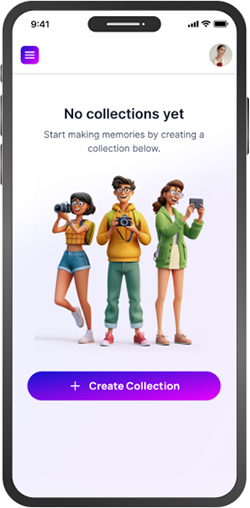
The Create Collection feature allows users to organize their content by creating a collection and adding media such as images and videos. Collections help users group related items and manage them efficiently within the PicMe application.
Create Collection Screen Components
Accessing Create Collection
- Log in to the application.
- Navigate to the Collections section.
- Click the Create Collection button.

Collection Name Field
- Users must enter a name for the collection.
- This field is mandatory.

Continue Button
- Saves the collection

Cancel Button
- Discards changes and exits the flow.

Add Media Section
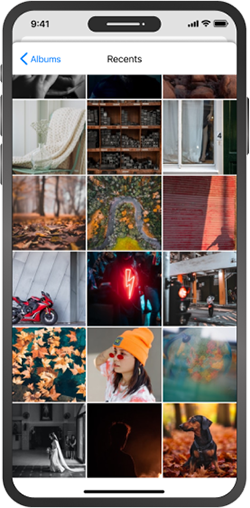
- Users can add Images and Videos to the collection.
- Supported upload actions: - Browse and upload from device - Drag and drop

Rename Collection
Overview
The Rename Collection feature allows users to update the name of an existing collection for better organization and clarity.
Rename Collection Screen
Accessing Rename Collection
- Log in to the application.
- Navigate to the Collections section.
- Click the Collection menu button.
- Select the Rename option.

Collection Name Field
- Users must enter a name for the collection.
- Collection names must follow the allowed character limit
- Duplicate collection names may not be allowed
- This field is mandatory.

Save Button
- Saves the collection.

Collection name is updated
- The collection name is updated successfully
- The new name is reflected across all relevant areas.

Move to Collection
Overview
The Move to Collection feature allows users to change the position of a selected collection within the collection hierarchy. Users can move a collection to one of the following locations:
- Below another collection – Moves the selected collection under a different parent collection
- One level up – Moves the collection up by one level in the hierarchy
- Top level – Moves the collection to the root (top-level) of the collections list
Move to Collection Screen
Accessing Move to Collection
- Log in to the application.
- Select the collection you want to move
- Click on collection menu
- Choose the Move to Collection option

Move Below
- Moves the selected collection under a different parent collection.
- Check the Move below check box

- Select the parent collection

- Click on Move button

- The collection is moved to the selected location successfully
- The updated hierarchy is reflected immediately across the application

Move to one level up
- Moves the selected collection up by one level in the hierarchy.
- Check the Move up one level check box

- Click on Move button

- The collection is moved to the selected location successfully
- The updated hierarchy is reflected immediately across the application

Move to top level
- Moves the selected collection to top level in the hierarchy.
- Check the Move up one level check box

- Click on Move button

- The collection is moved to the selected location successfully
- The updated hierarchy is reflected immediately across the application

Add New Subcollection
Overview
The Add New Subcollection feature allows users to create a new sub-collection under an existing collection, helping them organize content in a structured and hierarchical manner.
New Subcollection Screen
Accessing add New Subcollection
- Log in to the application.
- Navigate to the Collections section.
- Click the Collection menu button.
- Select the Add sub collection option.

Collection Name Field
- Users must enter a name for the collection.
- Collection names must follow the allowed character limit
- Duplicate collection names may not be allowed
- This field is mandatory.

Continue Button
- Create the sub collection.

Sub collection name is updated
- The sub collection name is updated successfully
- The new name is reflected across all relevant areas.

Delete a Collection
Overview
The Delete Collection feature allows users to permanently remove an existing collection from the application.
Delete a Collection Screen
Accessing delete Collection
- Log in to the application.
- Navigate to the Collections section.
- Click the Collection menu button.
- Select a Delete option

- Click on Delete button

Collection is deleted
- The selected collection is deleted successfully

Add a Picture in Collection
Overview
The Add Picture feature allows users to upload the images and videos to a selected collection for easy storage and organization.
Add a Picture in the Collection Screen
Accessing Upload button
- Log in to the application.
- Click on the add button.

Select the Image
- Select a picture from the device gallery or file manager
- Click on Open button

Picture is uploaded
- The selected picture is uploaded successfully

Rename Image
Overview
The Rename Image feature allows users to change the name of an image that has been added to a collection, making it easier to identify and organize files.
Rename a Image Screen
Accessing rename button
- Log in to the application.
- The image must already be added to a collection
- Click on image menu option.
- Click on the rename option

Rename the Image
- Enter the new image name
- Click on Save button

Rename the Image
- The image name is updated successfully
- The new name is reflected wherever the image is displayed

Download the Image
Overview
The Download Image feature allows users to download an image from a collection to their device for offline use or sharing.
Download the Image Screen
Accessing Download button
- Log in to the application.
- The image must already be added to a collection
- Click on menu option.
- Click on the Download option

Image is downloaded
- The image is downloaded successfully
- The file is saved to the user’s device

Delete Image
Overview
The Delete Image feature allows users to remove an image from a collection.
After deletion, the image is not permanently removed. Instead, the deleted image is moved to:
- Collection Trash, and
- Account Recycle Bin page
This allows users to recover the image if needed before it is permanently deleted
Delete a Image Screen
Accessing Delete button
- Log in to the application.
- The image must already be added to a collection
- Click on menu option.
- Click on the Delete option

Image is Deleted
- The selected image is deleted from the collection confirmation pop up is displayed
- Click on delete button

- The selected image is deleted successfully
- The deleted image is moved to trash

Note on Image
Overview
The user can add a note to an image and perform edit and delete operations on the added note.
Notes on Image Screen
Accessing Notes icon
- Log in to the application.
- Navigate to the Collections section.
- The image must already be added to a collection
- Open the image
- Click on Notes icon.

Add button
- Click on the Add button to open the text area.

Write a Notes
- Enter the note in the text area
- Click the Save button

Added Notes on image
- The note is successfully added to the image.

Edit button
- The Edit button allows users to modify an existing note added to an image.
- Click on edit button.

- Enter the Edited text
- Click on save button

- Modified an existing note added to an image

Clear button
- The Clear Notes option allows users to remove the text from an existing note. Once cleared and saved, the note content is deleted from the image.
- Click on Clear notes button

- Notes content deleted from the image

Comment on Image
Overview
The Comment on Image feature allows users to add comments directly to an image. Users can view, copy, edit, or delete their comments as needed, enabling better collaboration and context around the image.
Comment on Image Screen
Accessing Comment icon
- Log in to the application.
- Navigate to the Collections section.
- The image must already be added to a collection
- Open the image
- Click on comment icon

Add Comment
- Enter the comment in comment text area

- Click on Send button

Comment is added
- The note is successfully added to the image.

Edit Comment
- Click on Comment menu

- Select Edit option

- Enter the Edited text
- Click on save button

Edited Comment
- The comment is edited successfully.

Delete Comment
- Click on Comment menu

- Select delete option

Comment is deleted
- The comment will be removed from the image.

Like an Image
Overview
The Like an Image feature allows users to express appreciation for an image within a collection.
Like an Image Screen
Accessing Like icon
- Log in to the application.
- Navigate to the Collections section.
- The image must already be added to a collection
- Open the image
- Click on like icon

Liked image
- The icon will be highlighted, indicating that the image has been liked.

Unliked image
- Click the Like icon again
- Click on like menu

- Select Delete option

- The like will be removed.

Favorite Image
Overview
The Add to Favorites feature allows users to mark an image as a favorite for quick access later.
Favorite Image Screen
Accessing Favorite icon
- Log in to the application.
- Navigate to the Collections section.
- The image must already be added to a collection
- Open the image
- Click on favorite icon

Image added to favorites
- The icon will be highlighted, indicating the image has been added to Favorites.

Remove from Favorites
- Click the Favorite icon again.

- The image will be removed from Favorites

Allow Comment and Like Permission
Overview
The Allow Comment and Like permission lets collection owners control whether users can interact with images by commenting on or liking them.
Comment and Like Permission Screen
Accessing Collection Setting
- Log in to the application.
- Navigate to the Collections section.
- Click on Collection menu

- Select Setting option

Comment and Like permission is applied
- Enable or disable the permission
- When enabled, users can:
- Add comments to images
- Like images
- When disabled, users can:
- View images only
- Cannot add comments or likes

Copy to Another Collection
Overview
The Copy to Another Collection feature allows users to duplicate an image (or selected items) from the current collection into another collection without removing it from the original location.
Copy to another collection Screen
Accessing copy to another Collection
- Log in to the application.
- Navigate to the Collections section.
- Open the image
- Click on Image menu

- Select “Copy to another collection” option

- Select the Collection name

- Click on copy button

Image is copied to another collection
- The selected image is successfully copied to the chosen collection.

Image is copied to another collection with comments and likes
- Click on Image menu

- Select “Copy to another collection” option

- Select the Collection name
- And check the copy comment and likes check box

- Click on copy button

Image is copied with comment and like to another collection
- The selected image is successfully copied to the chosen collection.
- All comments and likes are copied.

Image is copied with uploader to me to another collection
- The selected image is successfully copied the the collection
- Select “Copy to another collection” option

- Select the Collection name
- And check the change uploader to me check box
- Click on copy button

Image is copied with change the uploader name to me
- The selected image is successfully copied the collection.
- Uploader name I s changed to me

Notes on Collection
Overview
The Notes on Collection feature allows users to add descriptive text or important information at the collection level. These notes help provide context, instructions, or additional details related to the collection content.
Notes on Collection Screen
Accessing Notes option
- Log in to the application.
- Navigate to the Collections section.
- Click on collection menu

- Click on Notes option

Add button
- Click on the Add button to open the text area.

Write a Notes
- Enter the note in the text area
- Click the Save button

Added Notes on image
- The note is successfully added to the collection.

Edit button
- The Edit button allows users to modify an existing note added to an collection.

- Enter the Edited text
- Click on save button

- Modified an existing note added to an image

Clear button
- The Clear Notes option allows users to remove the text from an existing note. Once cleared and saved, the note content is deleted from the collection.
- Click on Clear notes button

- Notes content deleted from the collection

Comment on Collection
Overview
The Comment on Collection feature allows users to add comments to a collection for communication, feedback, or discussion. It helps users collaborate and share information related to the collection.
Comment on Collection Screen
Accessing Comment option
- Log in to the application.
- Navigate to the Collections section.
- Click on collection menu

- Click on comment option

Add Comment
- Enter the comment in comment text area

- Click on Send button

Comment is added
- The note is successfully added to the image.

Edit Comment
- Click on Comment menu

- Select Edit option

- Enter the Edited text
- Click on save button

Edited Comment
- The comment is edited successfully.

Delete Comment
- Click on Comment menu
- Select delete option

- Click on delete button

Comment is deleted
- The comment will be removed from the image.

Image Grid & List View
Overview
The Image Grid View feature allows users to view images in a collection in a grid layout. It displays multiple images in rows and columns, making it easier to browse, preview, and manage images efficiently.
Grid view Screen Components
Accessing Comment option
- Log in to the application.
- Navigate to the Collections section.
- The image must already be added to a collection
- Select collection menu

Grid view option
- Click on Grid view option

Images displayed in Grid view
- Images are displayed in a structured grid format.
- Multiple images are visible on the screen at the same time.
- Users can quickly preview images without opening each one.
- Users can click on any image to view it in full size.

List view option
- Select collection menu
- Click on list view option

Images displayed in List view
- Images are displayed in a structured List format.
- Multiple images are visible on the screen at the same time.

Refresh the Page
Overview
The Refresh Collection Page feature allows users to reload the collection page to fetch the latest updates, such as newly added images, changes in collection content, or updated data.
Refresh Screen
Accessing Refresh option
- Log in to the application.
- Navigate to the Collections section.
- Click on collection menu

- Select Refresh option

Page Refreshed
- The collection page reloads successfully.
- Updated images, files, or changes are displayed.
- No data loss occurs during refresh.
- Page loads without errors.
Collection Usage
Overview
Provide a Collection Usage section that displays detailed information about storage and usage, including plan details, number of photos, and data usage statistics.
Proposed Functionality:
1. Plan Details
- Display current subscription plan.
- Show plan limits (storage limit, upload limit, etc.).
2. Number of Photos in Collection
- Show total number of photos available in each collection.
- Update count automatically after upload/delete.
3. Data Usage Tracking
- Monthly Usage → Total data used in the current month.
- Daily Usage → Data consumed per day.
4. Total Storage Usage
- Display total storage used vs available storage.
- Show usage in GB/MB with visual indicator (progress bar).
Collection Usage Screen
Accessing Collection Usage
- Click on collection menu

- Select the Collection Usage option

- Collection usage page is displayed

Slideshow
Overview
The Slide Show feature allows users to view images in a collection sequentially in full-screen mode. It automatically displays images one by one, providing a better viewing experience without manually opening each image.
Slideshow Screen
Accessing Sideshow option
- Log in to the application.
- Navigate to the Collections section.
- Click on collection menu

- Select Slideshow option

All Item Slideshow
- All Item radio button is selected
- Click on start button

Favorites Slidshow
- Favorites radio button is selected
- Click on start button

Slideshow is started
- Images display in full-screen mode.
- Images automatically change after a few seconds.
- Slideshow exits successfully when closed.
Delete All Item
Overview
The Delete All Items feature allows users to remove all images/files from a collection at once instead of deleting them individually. This helps users quickly clear the collection content.
Delete All Item Screen
Accessing Delete all item option
- Log in to the application.
- Navigate to the Collections section.
- Click on collection menu

- Select Delete all item option

- Click on delete button on confirmation popup

Deleted all item option•All items in the collection are deleted successfully.
- All items in the collection are deleted successfully.
- Deleted items move to Collection Trash or Recycle Bin.
- The collection becomes empty after deletion.
- Confirmation message is displayed after successful deletion.

View Trash
Overview
The View Trash option displays all deleted items from the collection. It provides the following actions:
- Restore All – Restores all deleted items back to the collection.
- Delete All – Permanently deletes all items from the trash
View Trash Screen
Accessing View Trash option
- Log in to the application.
- Navigate to the Collections section.
- Click on collection menu

- Select View trash option

- Displayed the all deleted items.

Deleted all item
- Click on view trash menu

- Select Delete all item option.

- Permanently deletes all items from the trash.
- Trash is empty.

Restored all item
- Click on view trash menu

- Select Restored all item option.

- Restores all deleted items back to the collection.

Filter
Add filter functionality to help users easily search and manage photos using different criteria such as favorites, all photos, date, and uploader name.
Overview
Add filter functionality to help users easily search and manage photos using different criteria such as favorites, all photos, date, and uploader name.
Proposed Filter Options
- Favorite Photos → Show only marked favorite images.
- All Photos → Display all uploaded photos.
- Filter by Date → Search photos based on upload date or date range.
- Filter by Uploader Name → Search photos uploaded by a specific user.
Filter Screen
Accessing Filter option
- Log in to the application.
- Navigate to the Collections section.
- Click on Filter icon

Filter By Favorite
- Click on Favorite option

- Click on save button

Displayed Favorite Images
- Show only marked favorite images.

All Item Filter
- Click on Favorite option

- Click on apply button

Displayed All Items
- Displayed all photos in the collection.

Filter By Uploaded Date
- Search photos based on upload date or date range.

- Click on apply button

Filter By Uploader Name
- Search photos uploaded by a specific user.

- Click on apply button

Guest Invite
Overview
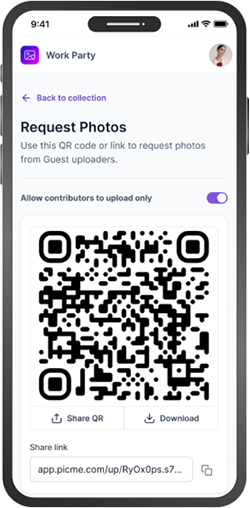
Provide a Create Invite option that generates an invite link to allow users to access photos with specific permissions such as uploading photos, viewing photos, and sharing invites.
1. Create Invite Link
- User can generate a secure invite link.
- Link can be shared with others to access photos or collections.
2. Permission-Based Access
While creating the invite, user can select permissions:
- Upload Photo Permission: Invited users can upload photos.
- View Photo Permission: Invited users can only view photos.
- Share Invite Permission: Invited users can further share the invite with others.
Create Invite Screen
Accessing Create Invite Option
- Log in to the application.
- Navigate to the Collections section.
- Click on Scanner icon

- Click on New Invite button

- Enter the Invite name
- Select the permissions
- Click on Create button

Created Invite
- Invite is created with given permissions.

Preview Invite
- Click on Invite menu

- Click on Preview option

- Invite preview is displayed

Edit Invite
- Click on Edit Invite option

- Edit the invite

- Invite is edited successfully

Disable Invite
- Select the Disable invite option

- Confirm disable invite

- Invite is Disabled.

ReEnable Invite
- Select the Re-Enable invite

- Confirm the Re-enable

- Invite is enabled.

Delete Invite
- Select the Delete invite option

- Confirm the Delete invite

- Invite is deleted

Notification
Overview
Provide a notification system that alerts users when a guest user uploads photos, comments, or likes photos. Also include notification preference settings to control how frequently notifications are sent.
Proposed Functionality
1. Activity Notifications
Users should receive notifications when:
- Guest user uploads photos.
- Guest user comments on photos.
- Guest user likes photos.
2. Notification Preference Settings
Users can control how notifications are delivered:
- Never → No notifications sent.
- Daily (Once per Day) → All activity notifications sent as a daily summary.
- Immediately → Notification sent instantly when activity occurs.
Notification Screen
Accessing Notification
- Click on Profile

- Select notification preference from profile list.

- Notification delivery follows selected option.
- Settings can be updated anytime.

Account
Overview
The Account option allows users to manage their profile information and application preferences.
Available Features:
- Update User Name
- User can edit and update their account name.
- Update Profile Image
- User can change or upload a new profile picture.
- Change Accent Color
- User can customize the application’s accent color.
- Theme Preference
- User can select preferred theme (e.g., Light/Dark mode).
- Change Language
- User can select preferred application language.
- Delete Account
- User can permanently delete their account.
Accessing Account Screen
Update User name
- Click on the Profile

- Select the Account option

- Update the user name
- Username is updated Automatically

Update Profile
- Click on the update profile option
- Select the image from your system


- Profile image is updated.

- Click on Reset button

- Profile is removed from your account.

Accent color
- Accent color is the highlight color used in the app’s interface to improve appearance and visibility. It changes the look of important UI elements.

Theme Preference
- Theme Preference allows users to choose how the application interface appears by selecting their preferred display mode.

Language
- Language allows users to change the language how the application interface appears by selecting their preferred display mode.

Delete Account
- Theme Preference allows users to choose how the application interface appears by selecting their preferred display mode.

My plan
Overview
The My Plan section displays account subscription details, storage usage, and collection information. It also allows users to view detailed account usage.
Available Features
- Plan Name
- Displays the current subscription plan.
- Total Number of Collections
- Shows the total collections available under the account.
- Account Storage Details
- Displays total storage and used storage.
- Daily Account Usage
- Shows daily storage or data usage.
- Plans and Pricing
- Displays all plans and pricing.
- View Account Usage Page
- Clicking View Account redirects to a detailed account usage page.
Accessing My plan screen
plan details
- Click on the Profile

- Select the My plan option

- See the Plan details

Plan and Pricing
The Plan and Pricing tab displays all available subscription plans along with their features and pricing details, allowing users to compare and choose the most suitable plan.
Available Features
- List of All Plans
- Displays all available subscription plans.
- Pricing Details
- Shows cost of each plan (monthly/yearly).
- Plan Features
- Displays benefits included in each plan (storage limit, number of collections, usage limits, etc.).
- Plan Comparison
- Helps users compare different plans.
- Purchase / Upgrade Option
- Users can select and subscribe to a plan.
- Steps for displayed the my plan and pricing :
- Click on Plan and Pricing button

- Displayed the plan details

View Account Usage
- Click on View Account Usage button

- Account usage page is displayed.
- Displayed the plan details.

Account Usage
Overview
The Account Usage section provides detailed information about the user’s subscription plan and storage consumption, helping users monitor their account activity and limits.
Available Features
- Plan Name
- Displays the current subscription plan.
- Total Number of Collections
- Shows the total collections available in the account.
- Storage Details
- Displays total storage and used storage.
- Daily Account Usage
- Shows daily data or storage usage.
- Total Photos Count
- Displays the total number of photos in the account.
Accessing Account Usage Screen
- Click on the Profile
- Select the Account Usage option
- Displayed the purchase plan details if user has purchase the plan else it displayed the free plan details.


Password and Security
Overview
The Password and Security option allows users to manage their account security by updating their password and enabling Multi-Factor Authentication (MFA).
Available Features
- Change Password
- Users can update their account password for better security.
- May require current password verification.
- Multi-Factor Authentication (MFA)
- Users can enable additional security verification.
- Requires a second authentication step (e.g., OTP or verification code) during login.
Password and Security Screen
Accessing Change Password
- Click on the Profile
- Select Password and Security option


- Click on the change Password button

- Enter the Old password
- Enter the new password
- Click on save and password should be changed.

Email Verification
- Click on the Email Verification button

- Click on send verification code to email

- Enter the received verification code
- Click on verify code button

- Email Verification is successfully applied

Authenticator app
- Click on the authenticator button

- Click on the continue button

- Scan the code using authenticater app
- Enter the verification code
- Click on Verify code button

- Authenticator MFA is successfully applied

Remove MFA
- Click on Off button

- Confirm the action to disable MFA
- MFA is successfully disabled

Recycle Bin
Overview
The Recycle Bin displays all deleted items from collections and allows users to restore or permanently delete images.
- View Deleted Items
- Displays all images deleted from collections.
- Restore Images
- Users can restore deleted images back to the collection.
- Permanent Delete
- Users can permanently remove images from the recycle bin.
Recycle Bin Screen
Accessing Recycle bin option
- Click on the Profile
- Select Recycle Bin option


- Displayed the all Deleted items.

Restored All
- Click on recycle bin menu

- Select Restored all option

- Restored all item in the collection

Delete All
- Click on recycle bin menu

- Select Delete all option

- All Items are deleted in recycle bin

Manage Guest
Overview
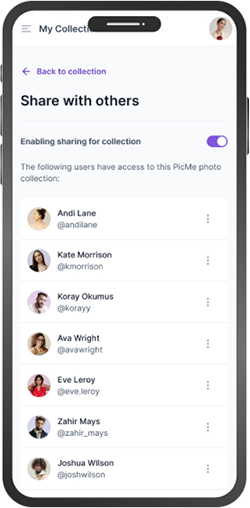
The Manage Guest option allows users to view all invited guest users, update their permissions, and disconnect their access to the collection.
Available Features
- View Guest List
- Displays all guest users who have access to the collection.
- Edit Permissions
- Users can modify guest permissions (e.g., upload, view, or other access rights).
- Disconnect Invite / Remove Guest
- Users can remove guest access from the collection at any time.
Manage Guest Screen
Accessing Manage Guest Option
- Click on the Profile

- Select Manage Guest Option

- Guest list is display all invited users.

Edit Guest Permission
- Click on guest user menu
- Select the Edit right option
- Click on Collection name
- Edit guest right pop up is displayed
- Edit the permission
- Click on Save button
- Permission changes is updated successfully


Disconnect Guest User
- Click on guest user menu
- Select the Disconnect from all option

- Confirm to disconnected guest from all invites
- Click on Disconnect button


- Disconnected from All collection invites.
- Anonymous user is disconnected from all invites.

Refer a Friend
Overview
The Refer a Friend option allows users to invite others to join the application by sharing an invite link or referral through different sharing methods.
Refer a Friend Screen
Accessing Refer a Friend
- Click on the Profile

- Select Refer a Friend Option

- QR Code and Invite link is displayed

Download QR code
- Click on Download icon

- Select the file format

- QR code is downloaded in your system

Page Preview
- Click on Preview icon

Copy and Shared
- Click on Copy icon

- Refer a friend URL link is copied

- Click on Shared icon

- Shared link pop up is displayed

- Select the invite using different applications.
Shared Invite with All Permission
Overview
A Shared Invite with All Permissions allows the invited user (guest) to have full access to the shared collection, including viewing, uploading, and managing content based on granted permissions.
Permissions Included:
- View Photos → Guest can view all photos in the collection.
- Upload Photos → Guest can upload new photos or videos.
- Comment and Like → Guest can comment on and like photos.
- Share Invite (if enabled) → Guest can share the collection with others.
Shared Invite with All Permission Screen
Create Invite with All Permission
- Log in to the application.
- Navigate to the Collections section.
- Click on Scanner icon

- Click on New Invite button

- Enter the Invite name
- Select the permissions
- Click on Create button

- Click on copy icon to copy the invite link.

Accept invite
- Open the shared invite link

- Click on Accept Invite button

- Enter the valid Login id

- Enter the valid Password
- Click on Log in button

- Invite is accepted successfully
- Collection images is displayed.

Add Images
- Click on "+" Add image button

- Select a picture from the device gallery or file manager
- Click on Open button

- Image is uploaded successfully.

View images
- All images are displayed

Reshared Collection
- Click on shared icon

- Select the invite name

- User is able to re share the collection

Disconnect Invite
- Click on Collection menu

- Select Disconnect option

- Invite collection is disconnected

Shared Invite with Upload Permission
Overview
This feature allows a user to share an invite with another user and grant specific upload permissions. The invited user can upload files to the shared location based on the assigned access level.
Key Behavior:
- User can send an invite to another user.
- User can assign upload permission during sharing.
- Invited user can upload files to the shared folder/location.
- Permission details are visible to both sender and receiver.
- Upload access can be modified or revoked later.
Shared Invite with Upload Permission Screen
Create a collection
- Log in to the application.
- Navigate to the Collections section.
- Click on Scanner icon

- Click on New Invite button

- Enter the Invite name
- Remove the view permissions

- Click on Create button
- Invites is created with upload and re-share permission

- Click on copy icon to copy the invite link.

Upload the Photos
- Open the invite URL

- Click on upload button

- Select the photo and upload it in collection

- Photo is uploaded successfully

Disconnect
- Click on Collection menu

- Select the Disconnect option

- Accepted invite is disconnected.

Shared Invite with View Permission
Overview
This feature allows a user to share an invite with another user and grant view-only permission. The invited user can access and view the shared files or content but cannot upload.
Key Behavior:
- User can send an invite to another user.
- User can assign view-only permission during sharing.
- Invited user can only view shared files/content.
Shared Invite with View Permission Screen
Create a Invite
- Log in to the application.
- Navigate to the Collections section.
- Click on Scanner icon

- Click on New Invite button

- Enter the Invite name
- Remove the upload permissions
- Click on Create button

- Invites is created with view and re-share permission

- Click on copy icon to copy the invite link.

Accept and View
- Hit the invite URL

- Click on Accept Invite button

- Login with guest user

- Invitation is accepted and view the all images

Disconnect
- Click on Collection menu
- Select Disconnect option
- Invite is disconnected


Purchase Plan
Overview
Users can purchase subscription plans such as 30-day and monthly plans, each offering different data usage limits.
Key Feature:
- User can view available subscription plans.
- User can select either a 30-day plan or a monthly plan.
- Each plan provides different data usage limits.
- Selected plan is activated after successful purchase.
Purchase Plan Screen
Purchase the plan
- Click on plans and pricing button

- Select the Subscription tab
- Click on Basic plan
- Click on Continue button
- Enter the card details
- Click on pay now button


- Click on continue button

- Basic plan are purchased successfully

Logout
Overview
The Logout functionality allows users to securely sign out of the application and terminate their active session.
Logout Screen
Accessing Logout Option
- Click on the Profile
- Click on Logout option


- User session is terminated successfully.
- User is redirected to the login screen.